Steam Deck controls & shortcuts
Steam Deck shortcuts can shift between SteamOS versions. The authoritative, always-current list is the one your Deck shows on screen when you hold the Steam button (or the QAM “…” button).
Hover any button for what it does. Switch between the Deck's own system shortcuts (hold STEAM + a button) and the controls for popular games — the same Xbox-style layout you'll hold.
Your game's Deck layout, on your wall
The controls of the games people play most on Steam Deck, as print-ready posters. No watermark on the print.
System button combos
Screenshots & capture
- Take a screenshot STEAM +R1
Game & window management
- Force quit the running game hold STEAM +B Hold until the game closes — the fix for a frozen title.
- Show the live shortcut list hold STEAM Hold Steam (or QAM) to see every current combo on screen.
Display & accessibility
- Brightness up STEAM +Stick ↑ Left stick, not the D-pad.
- Brightness down STEAM +Stick ↓ Left stick, not the D-pad.
- Toggle magnifier (zoom) STEAM +L1
Mouse & keyboard emulation
- Open / close on-screen keyboard STEAM +X
- Left mouse click STEAM +R2 Clicks are crossed: R2 = left.
- Right mouse click STEAM +L2 L2 = right.
- Move cursor (stick) STEAM +Right stick
- Move cursor (trackpad) STEAM +Right pad
- Enter STEAM +D-pad →
- Tab STEAM +D-pad ↓
- Escape STEAM +D-pad ←
System & power (hardware buttons)
- Sleep / wake POWER Short press to suspend; press again to resume.
- Power menu / shut down POWER Long press.
- Force power off POWER Hold ~5s only if unresponsive.
- Volume VOL + +VOL −
The rear grip buttons (L4, L5, R4, R5) ship unassigned — remap them to any input per game or globally in the controller settings.
Game controls on Steam Deck
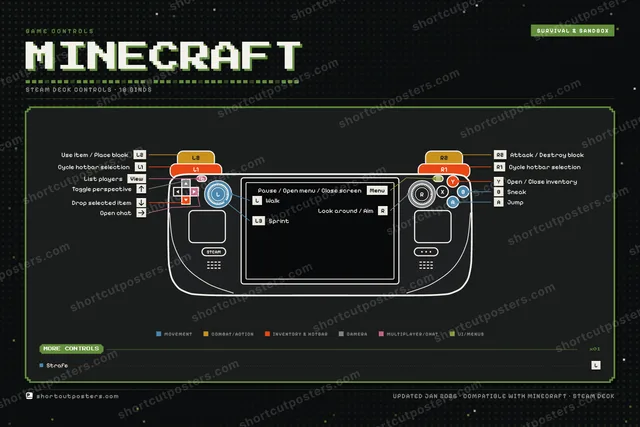
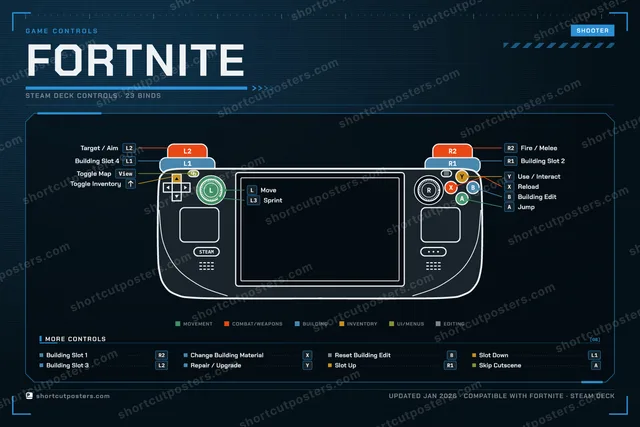
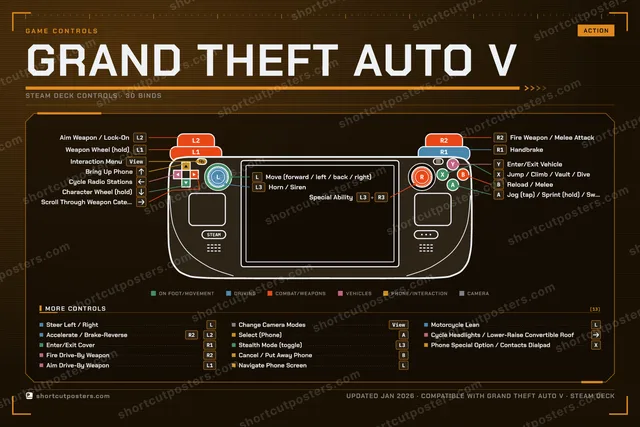
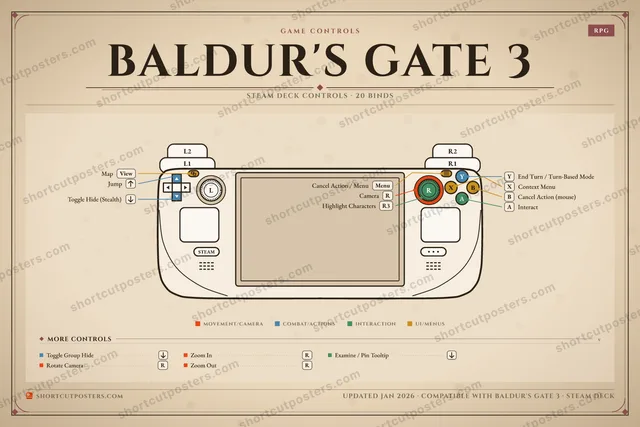
The Deck uses a standard Xbox-style controller, so these per-game button maps are exactly what you'll press on Steam Deck. Pick a game for its full control scheme.
-
 Minecraft Keyboard + Gamepad
 -

 Fortnite Keyboard + Gamepad
 -

 Grand Theft Auto V Keyboard + Gamepad
 -

 Baldur's Gate 3 Keyboard + Gamepad
 -

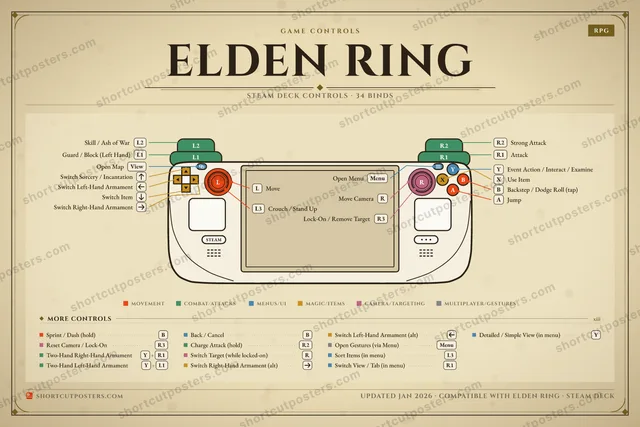
 Elden Ring Keyboard + Gamepad
 -

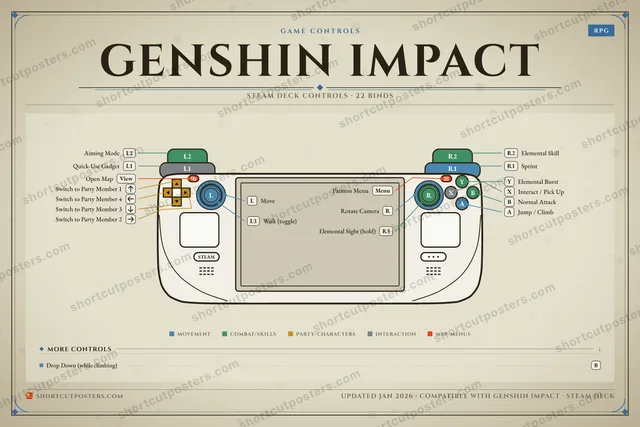
 Genshin Impact Keyboard + Gamepad
 -
 Roblox Keyboard + Gamepad
 -

 Vampire Survivors Keyboard + Gamepad
 -
 The Sims 4 Keyboard + Gamepad
 -
 Battlefield 6 Keyboard + Gamepad
 -
 Cyberpunk 2077 Keyboard + Gamepad
 -
 Call of Duty: Black Ops 7 Keyboard + Gamepad
 -
 Apex Legends Keyboard + Gamepad
 -
 Overwatch 2 Keyboard + Gamepad
 -
 Stardew Valley Keyboard + Gamepad
 -
 Slay the Spire Keyboard + Gamepad
 -

 Balatro Keyboard + Gamepad
 -
 Call of Duty: Black Ops 6 Keyboard + Gamepad
 -

 Hades Keyboard + Gamepad
 -
 Hollow Knight: Silksong Keyboard + Gamepad
 -
 NBA 2K27 Keyboard + Gamepad
 -
 PUBG: Battlegrounds Keyboard + Gamepad
 -
 BioShock Keyboard + Gamepad
 -

 EA SPORTS Madden NFL 27 Keyboard + Gamepad
 -
 The Elder Scrolls V: Skyrim Keyboard + Gamepad
 -

 Marvel's Spider-Man Remastered Keyboard + Gamepad
 -
 Hades II Keyboard + Gamepad
 -
 Metro Exodus Keyboard + Gamepad
 -

 The Binding of Isaac: Rebirth Keyboard + Gamepad
 -

 God of War Ragnarök Keyboard + Gamepad
 -

 Dave the Diver Keyboard + Gamepad
 -
 Assassin's Creed Black Flag Resynced Keyboard + Gamepad
 -

 Blue Prince Keyboard + Gamepad
 -

 EA SPORTS FC 27 Keyboard + Gamepad
 -
 BioShock Infinite Keyboard + Gamepad
 -
 Call of Duty: Modern Warfare III Keyboard + Gamepad
 -
 Warhammer 40,000: Space Marine 2 Keyboard + Gamepad
 -
 Destiny 2 Keyboard + Gamepad
 -

 Red Dead Redemption 2 Keyboard + Gamepad
 -

 Disco Elysium Keyboard + Gamepad
 -

 Ghost of Tsushima Keyboard + Gamepad
 -

 God of War Keyboard + Gamepad
 -

 Mortal Kombat 11 Keyboard + Gamepad
 -
 Portal 2 Keyboard + Gamepad
 -
 Fallout 4 Keyboard + Gamepad
 -

 The Witcher 3: Wild Hunt Keyboard + Gamepad
 -

 The Elder Scrolls Online Keyboard + Gamepad
 -
 Dragon Age: The Veilguard Keyboard + Gamepad
 -

 Final Fantasy VII Remake Intergrade Keyboard + Gamepad
 -
 Diablo IV Keyboard + Gamepad
 -

 Final Fantasy XVI Keyboard + Gamepad
 -

 Far Cry 5 Keyboard + Gamepad
 -
 Tom Clancy's Rainbow Six Siege Keyboard + Gamepad
 -
 Warframe Keyboard + Gamepad
 -
 Wuthering Waves Keyboard + Gamepad
 -
 Assassin's Creed Odyssey Keyboard + Gamepad
 -
 Call of Duty: Modern Warfare 4 Keyboard + Gamepad
 -

 Horizon Forbidden West Keyboard + Gamepad
 -

 Silent Hill 2 Keyboard + Gamepad
 -
 Monster Hunter Wilds Keyboard + Gamepad
 -
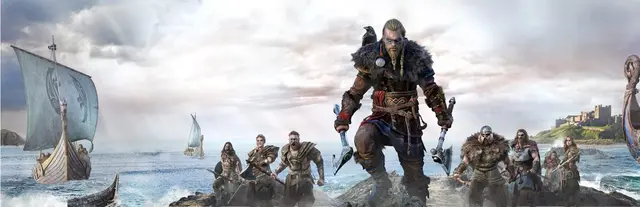
 Assassin's Creed Valhalla Keyboard + Gamepad
 -
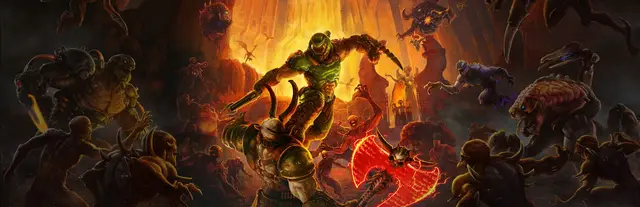
 Doom Eternal Keyboard + Gamepad
 -

 METAL GEAR SOLID V: The Phantom Pain Keyboard + Gamepad
 -
 Dead Space Keyboard + Gamepad
 -
 Final Fantasy VII Rebirth Keyboard + Gamepad
 -

 Indiana Jones and the Great Circle Keyboard + Gamepad
 -
 Marvel Rivals Keyboard + Gamepad
 -
 Dragon Age: Inquisition Keyboard + Gamepad
 -

 Mass Effect Legendary Edition Keyboard + Gamepad
 -

 Shadow of the Tomb Raider Keyboard + Gamepad
 -
 Stray Keyboard + Gamepad
 -
 Call of Duty: Warzone Keyboard + Gamepad
 -

 Lies of P Keyboard + Gamepad
 -

 Yakuza 0 Keyboard + Gamepad
 -

 EA SPORTS FC 26 Keyboard + Gamepad
 -
 Marvel's Spider-Man 2 Keyboard + Gamepad
 -

 The Last of Us Part I Keyboard + Gamepad
 -
 Rocket League Keyboard + Gamepad
 -
 Street Fighter 6 Keyboard + Gamepad
 -

 Animal Well Keyboard + Gamepad
 -
 It Takes Two Keyboard + Gamepad
 -

 Mortal Kombat 1 Keyboard + Gamepad
 -

 Assassin's Creed Origins Keyboard + Gamepad
 -

 Borderlands 2 Keyboard + Gamepad
 -

 Borderlands 3 Keyboard + Gamepad
 -

 Battlefield 4 Keyboard + Gamepad
 -

 Assassin's Creed II Keyboard + Gamepad
 -
 Dying Light Keyboard + Gamepad
 -

 Horizon Zero Dawn Complete Edition Keyboard + Gamepad
 -

 Death Stranding Director's Cut Keyboard + Gamepad
 -

 Terraria Keyboard + Gamepad
 -
 Clair Obscur: Expedition 33 Keyboard + Gamepad
 -

 The Elder Scrolls IV: Oblivion Remastered Keyboard + Gamepad
 -
 Final Fantasy XIV Keyboard + Gamepad
 -
 Brotato Keyboard + Gamepad
 -
 Kingdom Come: Deliverance Keyboard + Gamepad
 -

 Star Wars Jedi: Survivor Keyboard + Gamepad
 -

 Tomb Raider (2013) Keyboard + Gamepad
 -
 Zenless Zone Zero Keyboard + Gamepad
 -
 Far Cry 6 Keyboard + Gamepad
 -
 Metro 2033 Redux Keyboard + Gamepad
 -
 Titanfall 2 Keyboard + Gamepad
 -
 Honkai: Star Rail Keyboard + Gamepad
 -

 Marvel's Spider-Man: Miles Morales Keyboard + Gamepad
 -

 Alan Wake 2 Keyboard + Gamepad
 -
 Don't Starve Together Keyboard + Gamepad
 -

 Hitman World of Assassination Keyboard + Gamepad
 -

 Persona 5 Royal Keyboard + Gamepad
 -

 Halo: The Master Chief Collection Keyboard + Gamepad
 -

 Resident Evil Requiem Keyboard + Gamepad
 -
 DOOM (2016) Keyboard + Gamepad
 -
 Dead Cells Keyboard + Gamepad
 -

 Risk of Rain 2 Keyboard + Gamepad
 -
 Darkest Dungeon Keyboard + Gamepad
 -

 Nine Sols Keyboard + Gamepad
 -
 Tekken 8 Keyboard + Gamepad
 -
 Fall Guys Keyboard + Gamepad
 -
 Starfield Keyboard + Gamepad
 -
 Battlefield REDSEC Keyboard + Gamepad
 -

 Assassin's Creed Shadows Keyboard + Gamepad
 -
 DOOM: The Dark Ages Keyboard + Gamepad
 -

 Path of Exile 2 Keyboard + Gamepad
 -

 Star Wars Jedi: Fallen Order Keyboard + Gamepad
 -

 Monster Hunter: World Keyboard + Gamepad
 -

 Dark Souls III Keyboard + Gamepad
 -
 Metro: Last Light Redux Keyboard + Gamepad
 -
 Batman: Arkham City Keyboard + Gamepad
 -

 Kingdom Come: Deliverance II Keyboard + Gamepad
 -
 Helldivers 2 Keyboard + Gamepad
 -
 Detroit: Become Human Keyboard + Gamepad
 -
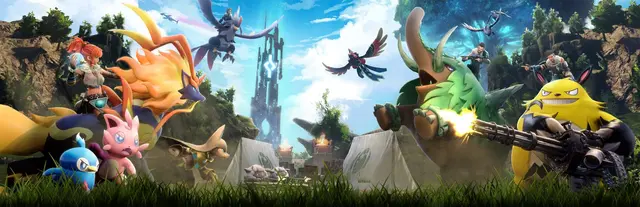
 Palworld Keyboard + Gamepad
 -

 Dead by Daylight Keyboard + Gamepad
 -
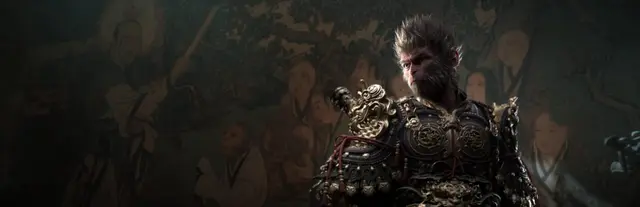
 Black Myth: Wukong Keyboard + Gamepad
 -

 PAYDAY 2 Keyboard + Gamepad
 -

 Far Cry 3 Keyboard + Gamepad
 -

 Farming Simulator 22 Keyboard + Gamepad
 -

 Hogwarts Legacy Keyboard + Gamepad
 -

 Assassin's Creed Unity Keyboard + Gamepad
 -
 Borderlands 4 Keyboard + Gamepad
 -
 Monster Hunter Rise Keyboard + Gamepad
 -

 No Man's Sky Keyboard + Gamepad
 -

 Batman: Arkham Asylum Keyboard + Gamepad
 -
 Resident Evil 4 Keyboard + Gamepad
 -
 Mount & Blade II: Bannerlord Keyboard + Gamepad
 -

 A Plague Tale: Requiem Keyboard + Gamepad
 -
 Remnant II Keyboard + Gamepad
 -
 Call of Duty: Black Ops III Keyboard + Gamepad
 -

 Elden Ring Nightreign Keyboard + Gamepad
 -

 Dying Light 2 Stay Human Keyboard + Gamepad
 -

 Resident Evil 7 biohazard Keyboard + Gamepad
 -
 Battlefield 1 Keyboard + Gamepad
 -

 Watch Dogs: Legion Keyboard + Gamepad
 -
 Atomic Heart Keyboard + Gamepad
 -
 The Outer Worlds Keyboard + Gamepad
 -
 Hollow Knight Keyboard + Gamepad
 -
 Crow Country Keyboard + Gamepad
 -
 Sekiro: Shadows Die Twice Keyboard + Gamepad
 -

 Pentiment Keyboard + Gamepad
 -
 Valheim Keyboard + Gamepad
 -

 Battlefield V Keyboard + Gamepad
 -

 Far Cry 4 Keyboard + Gamepad
 -
 Resident Evil 2 Keyboard + Gamepad
 -
 Far Cry New Dawn Keyboard + Gamepad
 -

 Days Gone Keyboard + Gamepad
 -
 BioShock 2 Keyboard + Gamepad
 -

 Diablo II: Resurrected Keyboard + Gamepad
 -

 Watch Dogs 2 Keyboard + Gamepad
 -

 The Outer Worlds 2 Keyboard + Gamepad
 -

 EA SPORTS College Football 27 Keyboard + Gamepad
 -
 Satisfactory Keyboard + Gamepad
 -

 S.T.A.L.K.E.R. 2: Heart of Chornobyl Keyboard + Gamepad
 -
 Star Wars Outlaws Keyboard + Gamepad
 -
 ACE COMBAT 8: WINGS OF THEVE Keyboard + Gamepad
 -
 Dishonored Keyboard + Gamepad
 -

 Dying Light: The Beast Keyboard + Gamepad
 -
 Battlefield 2042 Keyboard + Gamepad
 -
 Dark Souls: Remastered Keyboard + Gamepad
 -

 STAR WARS Battlefront II Keyboard + Gamepad
 -

 Avowed Keyboard + Gamepad
 -

 Call of Duty: Black Ops II Keyboard + Gamepad
 -

 Sea of Thieves Keyboard + Gamepad
 -

 Farming Simulator 25 Keyboard + Gamepad
 -

 Silent Hill f Keyboard + Gamepad
 -

 Crimson Desert Keyboard + Gamepad
 -

 Forza Horizon 5 Keyboard + Gamepad
 -

 Halo Infinite Keyboard + Gamepad
 -

 Alien: Isolation Keyboard + Gamepad
 -
 ARC Raiders Keyboard + Gamepad
 -
 Assetto Corsa Competizione Keyboard + Gamepad
 -
 Deep Rock Galactic Keyboard + Gamepad
 -

 Don't Starve Keyboard + Gamepad
 -
 DOOM + DOOM II Keyboard + Gamepad
 -

 Dragon's Dogma 2 Keyboard + Gamepad
 -

 Fallout 76 Keyboard + Gamepad
 -

 Metal Gear Solid Delta: Snake Eater Keyboard + Gamepad
 -
 Assassin's Creed Mirage Keyboard + Gamepad
 -

 Dead Island 2 Keyboard + Gamepad
 -
 Death Stranding 2: On the Beach Keyboard + Gamepad
 -
 LEGO Star Wars: The Skywalker Saga Keyboard + Gamepad
 -

 A Plague Tale: Innocence Keyboard + Gamepad
 -
 Overcooked! 2 Keyboard + Gamepad
 -
 Subnautica Keyboard + Gamepad
 -

 Dragon Quest XI S: Echoes of an Elusive Age - Definitive Edition Keyboard + Gamepad
 -
 The Forest Keyboard + Gamepad
 -

 Resident Evil Village Keyboard + Gamepad
 -
 Enter the Gungeon Keyboard + Gamepad
 -
 Split Fiction Keyboard + Gamepad
 -
 Trackmania Keyboard + Gamepad
 -
 Cult of the Lamb Keyboard + Gamepad
 -

 Control Keyboard + Gamepad
 -
 Dune: Awakening Keyboard + Gamepad
 -

 Mass Effect: Andromeda Keyboard + Gamepad
 -

 Arma Reforger Keyboard + Gamepad
 -
 Persona 3 Reload Keyboard + Gamepad
 -

 Dark Souls II: Scholar of the First Sin Keyboard + Gamepad
 -
 ARK: Survival Ascended Keyboard + Gamepad
 -
 Saints Row IV: Re-Elected Keyboard + Gamepad
 -

 Mafia: Definitive Edition Keyboard + Gamepad
 -
 7 Days to Die Keyboard + Gamepad
 -
 Delta Force Keyboard + Gamepad
 -

 Once Human Keyboard + Gamepad
 -

 DayZ Keyboard + Gamepad
 -
 Black Desert Online Keyboard + Gamepad
 -
 Final Fantasy XV Windows Edition Keyboard + Gamepad
 -

 New World: Aeternum Keyboard + Gamepad
 -
 Arknights: Endfield Keyboard + Gamepad
 -
 Marathon Keyboard + Gamepad
 -

 Mafia: The Old Country Keyboard + Gamepad
 -

 THE FINALS Keyboard + Gamepad
 -

 War Thunder Keyboard + Gamepad
 -

 Forza Horizon 6 Keyboard + Gamepad
 -

 Hunt: Showdown Keyboard + Gamepad
 -

 Mecha BREAK Keyboard + Gamepad
 -

 Microsoft Flight Simulator Keyboard + Gamepad
 -

 Subnautica 2 Keyboard + Gamepad
 -

 Farming Simulator 19 Keyboard + Gamepad
 -

 GUILTY GEAR -STRIVE- Keyboard + Gamepad
 -

 Outer Wilds Keyboard + Gamepad
 -

 Wolfenstein II: The New Colossus Keyboard + Gamepad
 -
 Warhammer 40,000: Darktide Keyboard + Gamepad
 -
 Wo Long: Fallen Dynasty Keyboard + Gamepad
 -
 CONTROL Resonant Keyboard + Gamepad
 -
 Assassin's Creed III Remastered Keyboard + Gamepad
 -
 Nioh 2 Keyboard + Gamepad
 -

 Quake Keyboard + Gamepad
 -

 Warhammer: Vermintide 2 Keyboard + Gamepad
 -
 Slime Rancher Keyboard + Gamepad
 -

 F1 24 Keyboard + Gamepad
 -
 Forza Motorsport Keyboard + Gamepad
 -

 Ninja Gaiden 4 Keyboard + Gamepad
 -
 Phasmophobia Keyboard + Gamepad
 -
 ARMORED CORE VI FIRES OF RUBICON Keyboard + Gamepad
 -

 Like a Dragon: Infinite Wealth Keyboard + Gamepad
 -
 Pizza Tower Keyboard + Gamepad
 -
 Ghostrunner Keyboard + Gamepad
 -
 The Callisto Protocol Keyboard + Gamepad
 -
 Wolfenstein: The New Order Keyboard + Gamepad
 -

 Metaphor: ReFantazio Keyboard + Gamepad
 -
 Tony Hawk's Pro Skater 3 + 4 Keyboard + Gamepad
 -

 Senua's Saga: Hellblade II Keyboard + Gamepad
 -

 A Way Out Keyboard + Gamepad
 -
 Little Nightmares III Keyboard + Gamepad
 -
 Hellblade: Senua's Sacrifice Keyboard + Gamepad
 -

 Grounded Keyboard + Gamepad
 -
 Deus Ex: Mankind Divided Keyboard + Gamepad
 -

 Mafia III: Definitive Edition Keyboard + Gamepad
 -

 Mafia II: Definitive Edition Keyboard + Gamepad
 -

 Resident Evil 3 Keyboard + Gamepad
 -
 Nioh 3 Keyboard + Gamepad
 -
 Pragmata Keyboard + Gamepad
 -

 V Rising Keyboard + Gamepad
 -
 Enshrouded Keyboard + Gamepad
 -

 Pacific Drive Keyboard + Gamepad
 -

 Halo: Campaign Evolved Keyboard + Gamepad
 -

 SnowRunner Keyboard + Gamepad
 -

 Middle-earth: Shadow of War Keyboard + Gamepad
 -

 Conan Exiles Keyboard + Gamepad
 -
 Subnautica: Below Zero Keyboard + Gamepad
 -

 Grand Theft Auto: San Andreas – The Definitive Edition Keyboard + Gamepad
 -

 Quake II Keyboard + Gamepad
 -

 Need for Speed Heat Keyboard + Gamepad
 -

 Crisis Core –Final Fantasy VII– Reunion Keyboard + Gamepad
 -
 Payday 3 Keyboard + Gamepad
 -

 The Blood of Dawnwalker Keyboard + Gamepad
 -
 Borderlands Keyboard + Gamepad
 -

 Sea of Stars Keyboard + Gamepad
 -

 Grand Theft Auto: Vice City – The Definitive Edition Keyboard + Gamepad
 -

 Saints Row Keyboard + Gamepad
 -

 Borderlands: The Pre-Sequel Keyboard + Gamepad
 -
 Dragon Quest Builders 2 Keyboard + Gamepad
 -

 Far Cry Primal Keyboard + Gamepad
 -
 Just Cause 3 Keyboard + Gamepad
 -

 RuneScape: Dragonwilds Keyboard + Gamepad
 -

 Where Winds Meet Keyboard + Gamepad
 -

 Grand Theft Auto III – The Definitive Edition Keyboard + Gamepad
 -
 Warhammer 40,000: Boltgun Keyboard + Gamepad
 -

 Farming Simulator 17 Keyboard + Gamepad
 -
 Resident Evil Keyboard + Gamepad
 -

 Back 4 Blood Keyboard + Gamepad
 -

 Alan Wake Keyboard + Gamepad
 -

 Dredge Keyboard + Gamepad
 -
 Far Cry 3: Blood Dragon Keyboard + Gamepad
 -
 Killing Floor 2 Keyboard + Gamepad
 -

 Astroneer Keyboard + Gamepad
 -
 DOOM 3 Keyboard + Gamepad
 -
 Tales of Arise Keyboard + Gamepad
 -

 Call of Juarez: Gunslinger Keyboard + Gamepad
 -

 Octopath Traveler II Keyboard + Gamepad
 -
 Sniper Elite 5 Keyboard + Gamepad
 -
 Need for Speed: Hot Pursuit Keyboard + Gamepad
 -
 007 First Light Keyboard + Gamepad
 -
 Onimusha: Way of the Sword Keyboard + Gamepad
 -
 Trails in the Sky 2nd Chapter Keyboard + Gamepad
 -
 Core Keeper Keyboard + Gamepad
 -
 Sleeping Dogs Keyboard + Gamepad
 -

 The Outlast Trials Keyboard + Gamepad
 -

 Wolfenstein: Youngblood Keyboard + Gamepad
 -
 Castle Crashers Keyboard + Gamepad
 -
 Ninja Gaiden 2 Black Keyboard + Gamepad
 -
 Splitgate 2 Keyboard + Gamepad
 -

 The Alters Keyboard + Gamepad
 -
 METAL GEAR SOLID 4: Guns of the Patriots - Master Collection Version Keyboard + Gamepad
 -

 Need for Speed Keyboard + Gamepad
 -

 Dragon Quest VII Reimagined Keyboard + Gamepad
 -
 Persona 3 Portable Keyboard + Gamepad
 -

 Vampire: The Masquerade - Bloodlines 2 Keyboard + Gamepad
 -

 DiRT Rally 2.0 Keyboard + Gamepad
 -

 Tunic Keyboard + Gamepad
 -

 Gears of War: Reloaded Keyboard + Gamepad
 -

 Planet Zoo 2 Keyboard + Gamepad
 -
 Resident Evil 6 Keyboard + Gamepad
 -

 STAR WARS Battlefront Keyboard + Gamepad
 -

 No Rest for the Wicked Keyboard + Gamepad
 -

 Monster Hunter Stories 2: Wings of Ruin Keyboard + Gamepad
 -

 STAR WARS: Squadrons Keyboard + Gamepad
 -

 Gothic 1 Remake Keyboard + Gamepad
 -
 Valor Mortis Keyboard + Gamepad
 -

 Dragon Quest I & II HD-2D Remake Keyboard + Gamepad
 -
 MARVEL Tōkon: Fighting Souls Keyboard + Gamepad
 -
 Mark of the Ninja Keyboard + Gamepad
 -

 Resonance: A Plague Tale Legacy Keyboard + Gamepad
 -

 Bully: Scholarship Edition Keyboard + Gamepad
 -
 DiRT Rally Keyboard + Gamepad
 -

 Just Cause 4 Keyboard + Gamepad
 -
 Sniper Elite: Resistance Keyboard + Gamepad
 -
 Jurassic World Evolution Keyboard + Gamepad
 -
 Monster Hunter Stories 3: Twisted Reflection Keyboard + Gamepad
 -

 Battlefield Hardline Keyboard + Gamepad
 -
 Mad Max Keyboard + Gamepad
 -
 Abiotic Factor Keyboard + Gamepad
 -
 Dragon Quest Monsters: The Dark Prince Keyboard + Gamepad
 -
 Dishonored: Death of the Outsider Keyboard + Gamepad
 -
 Wuchang: Fallen Feathers Keyboard + Gamepad
 -
 Darksiders Keyboard + Gamepad
 -

 Wolfenstein: The Old Blood Keyboard + Gamepad
 -

 DOOM 64 Keyboard + Gamepad
 -
 Persona 5 Strikers Keyboard + Gamepad
 -

 Cronos: The New Dawn Keyboard + Gamepad
 -

 Lost Soul Aside Keyboard + Gamepad
 -
 TCG Card Shop Simulator Keyboard + Gamepad
 -

 Need for Speed Payback Keyboard + Gamepad
 -
 Ninja Gaiden: Ragebound Keyboard + Gamepad
 -
 SOMA Keyboard + Gamepad
 -
 DIRT 5 Keyboard + Gamepad
 -
 Nioh Keyboard + Gamepad
 -
 Farming Simulator 15 Keyboard + Gamepad
 -
 Dead Rising 3 Apocalypse Edition Keyboard + Gamepad
 -
 Absolum Keyboard + Gamepad
 -
 Dragon Quest Builders Keyboard + Gamepad
 -
 Resident Evil 0 Keyboard + Gamepad
 -

 GRID Legends Keyboard + Gamepad
 -

 Need for Speed Rivals Keyboard + Gamepad
 -

 Amnesia: Rebirth Keyboard + Gamepad
 -
 Dispatch Keyboard + Gamepad
 -
 Hell is Us Keyboard + Gamepad
 -

 Amnesia: The Bunker Keyboard + Gamepad
 -
 EARTH DEFENSE FORCE 4.1: The Shadow of New Despair Keyboard + Gamepad
 -
 Chivalry: Medieval Warfare Keyboard + Gamepad
 -

 Star Wars Zero Company Keyboard + Gamepad
 -

 Saints Row: Gat out of Hell Keyboard + Gamepad
 -

 Darksiders Genesis Keyboard + Gamepad
 -
 Monster Hunter Stories Keyboard + Gamepad
 -
 Persona 5 Tactica Keyboard + Gamepad
 -

 Darksiders III Keyboard + Gamepad
 -
 FBC: Firebreak Keyboard + Gamepad
 -
 The Lord of the Rings: War in the North Keyboard + Gamepad
 -

 ANNO: Mutationem Keyboard + Gamepad
 -

 Tomb Raider IV-VI Remastered Keyboard + Gamepad
 -
 Metal Gear Solid (Master Collection Version) Keyboard + Gamepad
 -
 Homefront: The Revolution Keyboard + Gamepad
 -

 POSTAL Redux Keyboard + Gamepad
 -
 METAL GEAR SURVIVE Keyboard + Gamepad
 -
 METAL GEAR SOLID: Peace Walker - Master Collection Version Keyboard + Gamepad
 -
 Metal Gear & Metal Gear 2: Solid Snake Keyboard + Gamepad
 -
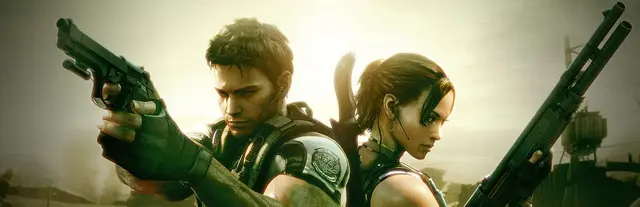
 Resident Evil 5 Keyboard + Gamepad
 -

 Ori and the Will of the Wisps Keyboard + Gamepad
Steam Deck controls — FAQ
How do I take a screenshot on Steam Deck?
Press Steam + R1. The capture is saved to your media, where you can view or share it.
How do I force quit a frozen game on Steam Deck?
Hold Steam + B until the game closes. This force-exits the running title and is the recommended fix for a frozen game.
How do I open the on-screen keyboard?
Press Steam + X. The same combo toggles the keyboard closed again.
How do I see every Steam Deck shortcut?
Hold the Steam button (or the QAM “…” button) for a couple of seconds and an on-screen list of the current shortcuts appears. The two buttons are interchangeable for these combos.
How do I control a mouse cursor in Game Mode?
Hold Steam and use the right stick or right trackpad to move the pointer, Steam + R2 for left-click, and Steam + L2 for right-click. In Desktop Mode the right trackpad acts as a mouse without holding Steam.
What are the back buttons (L4/L5/R4/R5) for?
They are extra programmable grip buttons, unassigned by default. You map them to any input per game (or globally) in the controller / button-layout settings.
Does the Steam Deck use an Xbox controller layout?
Yes — the face buttons follow the Xbox ABXY arrangement (A bottom, B right, X left, Y top) and it reports as a standard controller, plus Deck-specific buttons: Steam, QAM, two trackpads, and the L4/L5/R4/R5 grips.